
Identities
Managing identities to connect to remote systems
Introduction
An identity in the context of XPipe is a combination of a username, a password, and an SSH key where each part is optional. Which parts are required depend on the connection type and the authentication configuration of the remote system.
The credentials of an identity are used in various contexts, it is not only used for authentication. They are also used for elevation like for sudo when a password is required. For example, if you authenticate to a system via SSH with a user and key, it might still it makes sense to specify a password in the identity if the user requires that for sudo elevation. Then, XPipe can use this automatically without prompting you for the password.
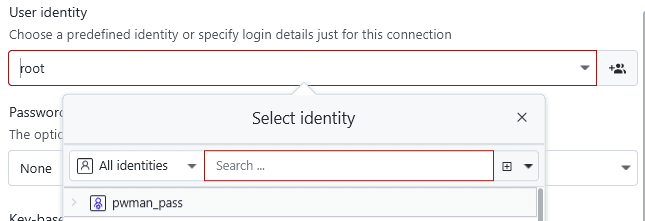
Any connection configuration dialog which takes an identity will have the option to either create a new identity or select an existing one:
Inline identities
In cases where you don't need to reuse an identity for multiple systems, it might make sense to just specify the identity inline. You can do this by just starting to fill out the user identity text field with a username instead of selecting an existing identity or clicking on the button to create a new one:
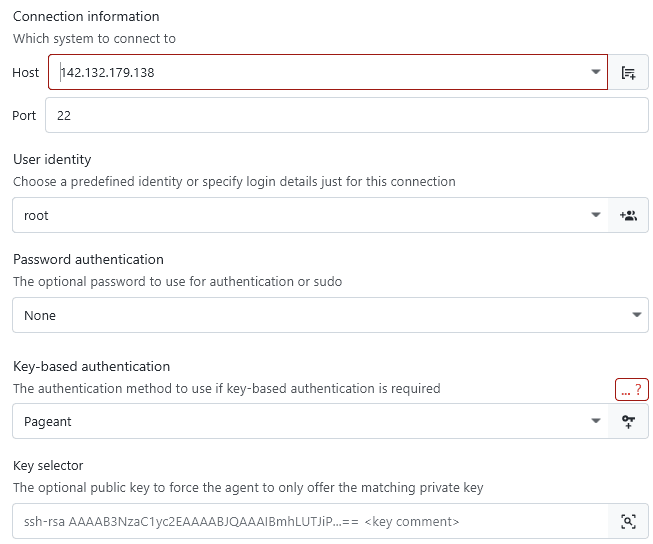
If, at a later point, you decide to make your inline identity a reusable one, you can do so by clicking on the identity creation button:

This will automatically create a reusable identity with your existing login details prefilled.
Local identities
The most basic identities are local identities, which are just available on this local XPipe installation. This distinction is relevant in the context of git vaults where your vault content is shared across multiple systems and users.

If you are using a git vault, then local identities cannot be synced. If you want to sync those identities, there is a button for local identities to convert them to synced identities:

Synced identities
A synced identity is designed to be included in a git vault. You can only create those types of identities if the vault sync setting is enabled.
If the identity contains a key file, then this key file must be synced to the git vault as well. You can do this with the git button for the key file field:
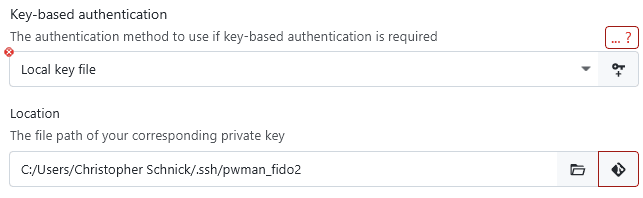
You can control whether this identity should be available only for your user or all users in a team vault. If you don't use a team vault, this option is greyed out.
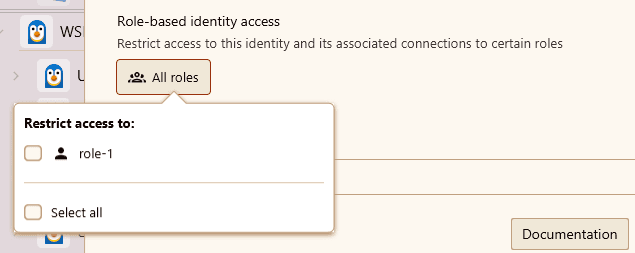
This property is visible in the connection hub where personal (= only available to your user) and global identities (= available to all users) have different descriptions:

An identity that is not available to a user, e.g. if it belongs to another user and the identity is marked as personal, then the identity will not show up for the other user. Any connections using this identity will also not show up for the other user. This allows you to keep connections and identities for yourself, even in a shared team vault.
Password manager identities
If you use a password manager to store credentials and maybe also SSH keys, then you can use password manager identities to retrieve this data directly. These identities can only be created if a password manager is configured in the settings. Whether password manager identities also support SSH keys it depends on the individual password manager and whether the agent integration is enabled in the settings menu.
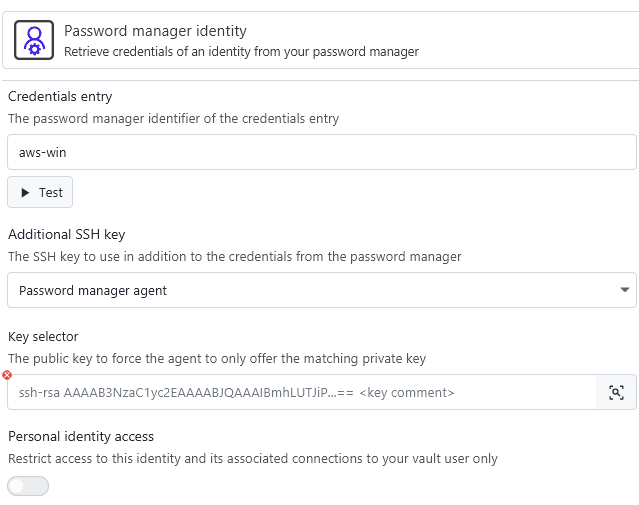
The first part, the credentials entry, specifies how to retrieve a username + password credentials entry from the password manager. Since identities are flexible, the username or password might be optional, depending on how the identity is used.
If the password manager supports an SSH agent and the agent integration is enabled in the settings menu, you can specify either the public key or the name of the SSH key you want to use. The select button on the right of the agent key selector field it provides you with an easy-to-use dialog to autofill this information.
You can also choose the user access similar to synced identities when you are using a team vault.
For more information on how to connect your password manager to XPipe, see the password manager docs.
Multi identities
A multi identity contains a list of available identities. If any of those identities are marked as personal and are inaccessible to another user, then a multi identity will automatically filter those out. The same applies if a multi identity is synced but some individual identities, e.g. local ones, are not.

It supports fast switching between individual identities, allowing for a flexible usage in various different scenarios. Below for possible usages.
Login switching
If you, as a single XPipe user, frequently switch between multiple different user logins on the same system, then using multi identities will make your life much easier. They allow you to switch the active identity in one click and avoid having to manually change existing identities:
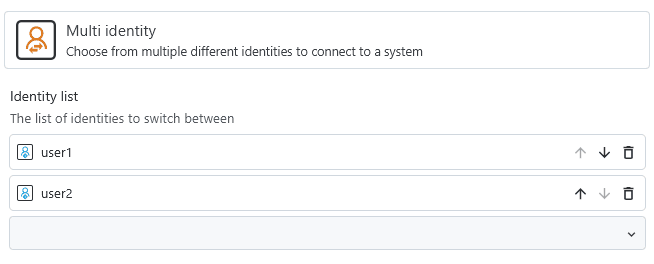
At any point later on, you can then switch the active identity:

This will also automatically log out and reset any active background shell sessions to properly apply any user changes.
Team vaults
In a team vault environment, different team members might want to use different identities to connect to the same system. In contrast to the manual user switching, this can be done automatically in team vaults. A multi identity contains a list of available identities, and if any of those identities are marked as personal and are inaccessible to another user, then a multi identity will automatically filter those out.
By creating a synced multi identity and letting each user add their personal identity to it, a multi identity will automatically take care of applying the identity that is available to a user. It will use the available personal identity while keeping the same connection configuration for everyone in the shared vault.
You can start by creating the multi identity for the first user:

Then, another user in the team vault can retrieve the team identity on a sync, but not the team-user-1 identity, as it is marked as personal. The other user can then add their personal identity to the team-identity as well:
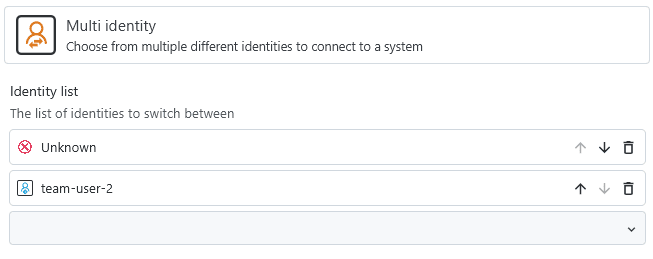
Since the team-user-1 identity is not available to the other user, it will be shown as Unknown. From the perspective of the other user, the multi identity will use their personal identity:

Local identities
If you use local identities that are not synced, you can use a synced multi identity to choose a locally available identity on each XPipe installation:
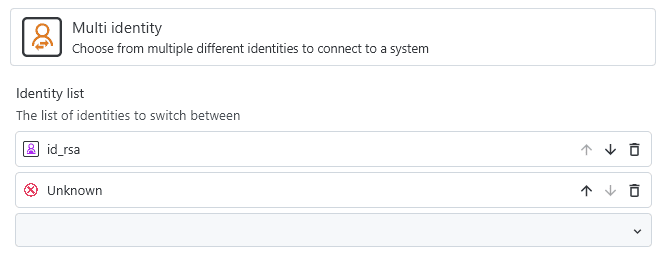
In this example, it uses the local id_rsa key on installation 1 while also having another local key configured on installation 2. Since these are local key files and are not synced, only the locally available identity will show up in the list. Other unavailable ones will be shown as Unknown.