
VNC
Accessing your systems with VNC
Introduction
VNC is commonly used in server administration to access servers in a graphical manner. While it is an outdated protocol, it still is solid enough to fulfill its task. XPipe comes with its own integration for VNC but also supports external VNC clients.

Integrated VNC client
If you are using the integrated VNC client, which is the default setting, all VNC sessions are opened in a separate window:
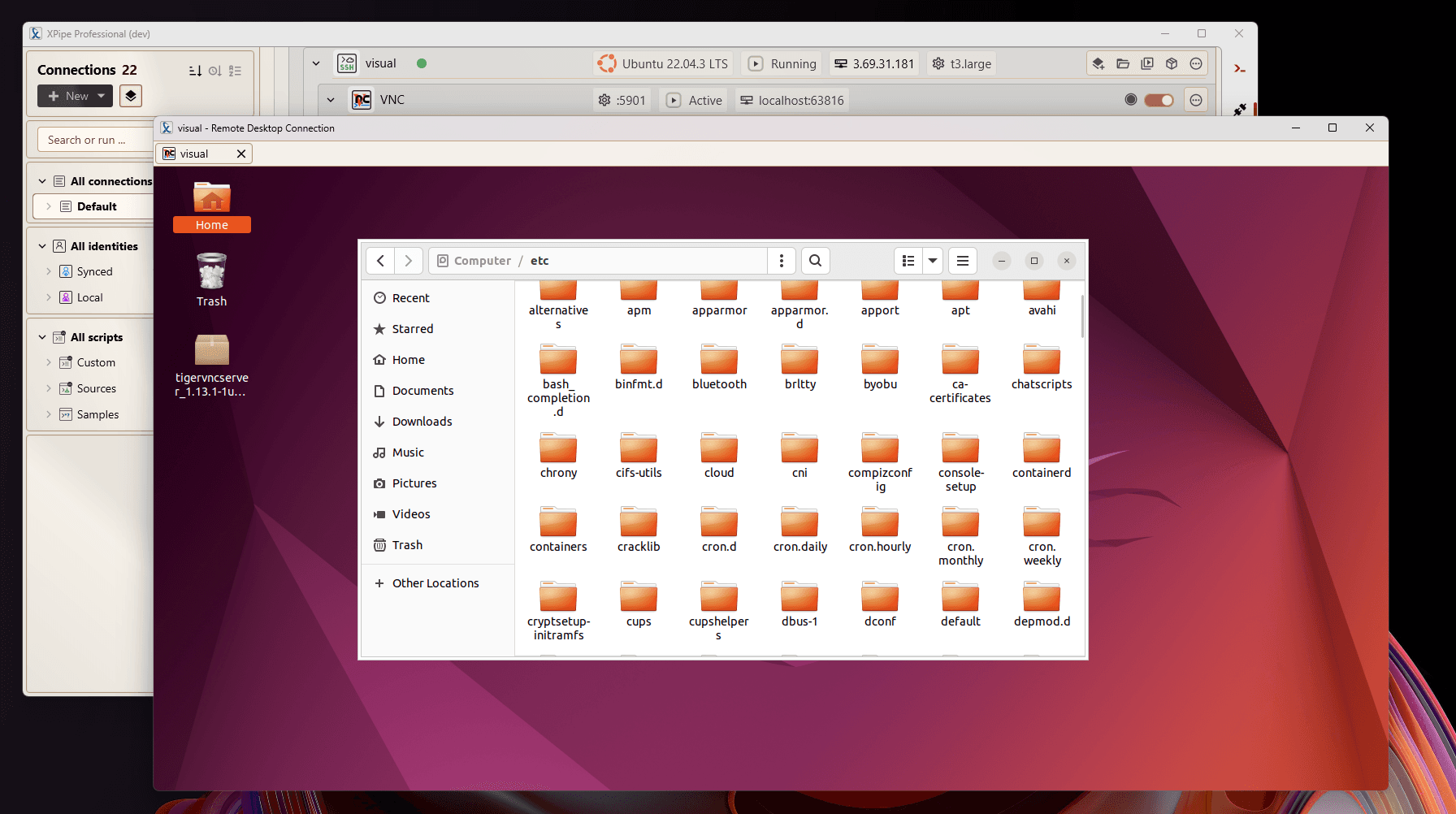
On Windows, this window is also used for RDP connections. On other operating systems, this window is only used for VNC. Regardless of the OS, it supports a tabbed interface to handle multiple sessions at the same time.
The usage of the built-in VNC client is straightforward, and there aren't a lot of configuration options. The only noteworthy points are:
- You can input the special key combination
CTRL+ALT+DELviaSHIFT+CTRL+ALT+DELto prevent your local desktop environment from catching the key combination
If you are looking for more advanced VNC features that this client does not offer, take a look at configuring a custom VNC client in the settings menu.
External VNC clients
While XPipe has its own built-in VNC support, it is not as extensive as other dedicated VNC clients. If you're missing certain features or authentication methods, you can also use your own VNC client in combination with XPipe and its tunneling capabilities. You can change the default VNC in the settings menu:
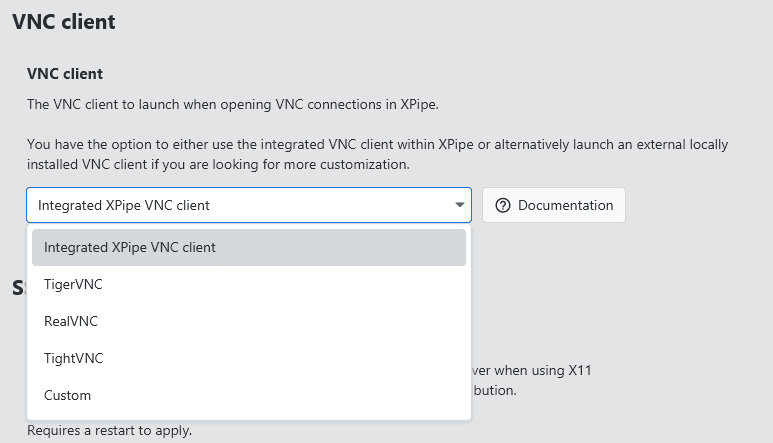
The selection of available clients depends on the operating system.
The VNC integration has the same support for all clients, so any tunneling capabilities via SSH that XPipe offers are also available when using external VNC clients.
Direct VNC connections
In the most basic form, you can create a direct VNC connections to a system:
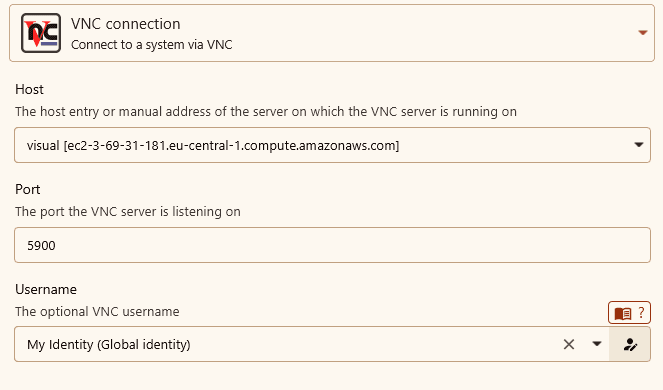
Here you have the choice between selecting an existing host in XPipe or manually type in a hostname.
In the former case, XPipe will automatically apply any gateways you have configured for the host system. If the existing host you selected is also running a SSH server, you can also use a tunneled VNC connection, which might be simpler in terms of authentication.
In the latter case, you type in a manual hostname to connect to. Here you can control any gateway manually. The gateway option allows you to tunnel the VNC traffic over an intermediate system without establishing a tunnel to the target system. This is useful if you can only reach an VNC host over a bastion system and don't want to manually create tunnels all the time.
Tunneled VNC connections
Tunneled VNC connections are connections where the remote VNC port is tunneled via SSH to your local machine. The advantage of this is that the VNC port doesn't have to be publicly exposed, the traffic is encrypted, and you can reuse authentication from an SSH connection. Furthermore, you will gain access to the more advanced SSH authentication options to connect to your VNC server compared to the often times more basic authentication for VNC. The only thing you need is an SSH connection to the remote system to select it as the target host.
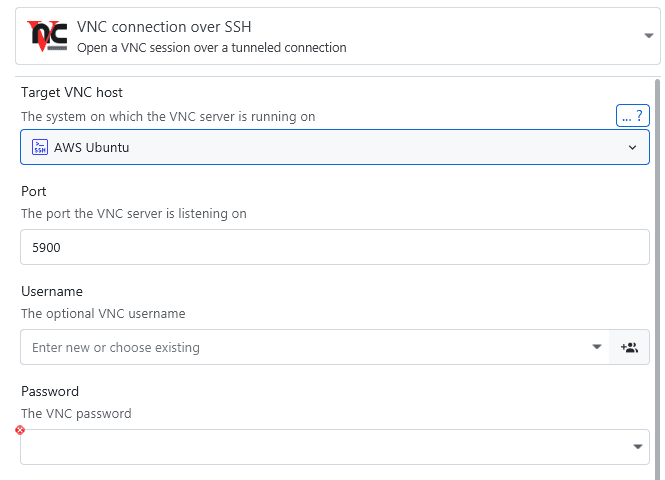
These tunnels bind to localhost on the remote system. This means that, for the connection to work, the VNC server must listen on localhost. Some servers do not do that by default. For more information on SSH tunnels, see also the local SSH tunnels page.
RealVNC servers
A common issue is that connections to systems running RealVNC server fail. This is in most cases due to the fact that RealVNC's server implementation is a proprietary development and does not adhere to public VNC standards.
The only way to make RealVNC server work with other external VNC clients, including XPipe, is to configure the protocol version to be equal or below v3.8. You can do that in the RealVNC expert settings. You might also have to enable the RealVNC server setting to allow so-called "legacy" VNC clients to connect to it.
An easier solution would be to just install another VNC server that uses open and standardized protocol versions instead of proprietary ones.