AWS
Accessing your AWS systems
Introduction
XPipe supports connecting to your EC2 instances and S3 buckets in your AWS account. Searching for available connections on the local system should make AWS connections show up if the aws CLI is added to the PATH on that system. If you have not installed the aws tool, you can find installation instructions here.
Profiles
The integration works through AWS CLI profiles. A profile consists out of a region, various configuration options, and credentials. If you are already using the AWS CLI, then XPipe should work automatically on top of it. It can make use of all preconfigured profiles automatically. If you have not used the AWS CLI before, then you can quickly get started as well from within XPipe.
There are two types of profiles that XPipe supports:
- Existing CLI config file profiles: These are suitable either if you already have them or if you are using advanced authentication that is above simple access keys, for example SSO. They live on the file system in the config and credentials file
- Internal XPipe configs: These are fully managed by XPipe and do not exist on the file system. They are simple to create and handle
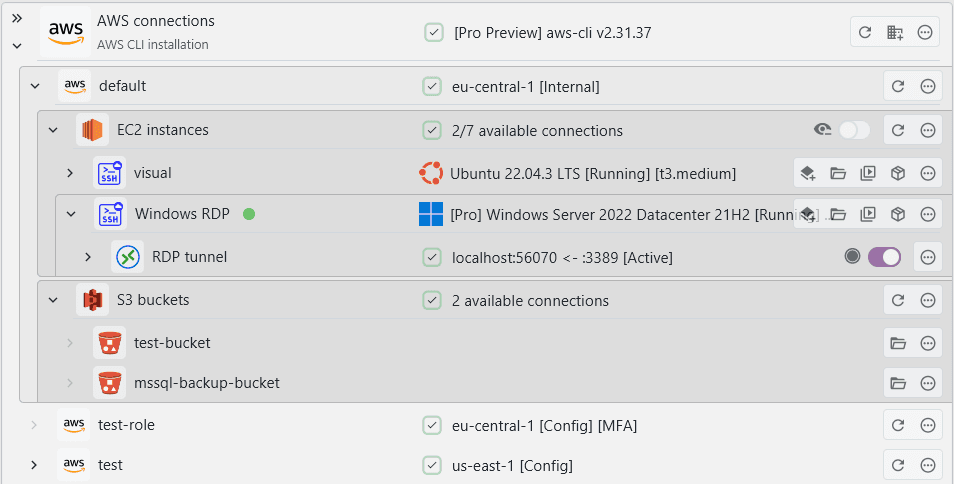
The type of the profile is displayed next to it:

If you modified any CLI profile config files, you can hit the refresh button on the top-level AWS entry to update any changes made to your profile configuration. To refresh the individual entries of profile, e.g. if you created a new EC2 instance in the region, you can hit the refresh button of the individual profile.
Synchronization
If you want to sync your AWS connections across multiple devices or share them with other team members, you will have to differentiate between internally managed profiles and external CLI config profiles. An internally managed profile can be synced automatically. A file-based profile requires the config file to be synced.
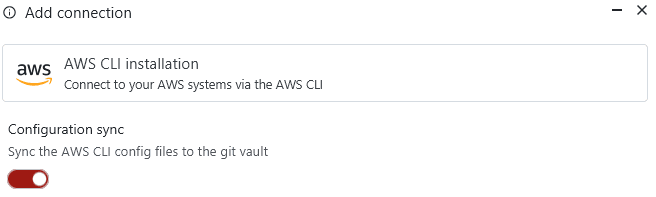
To also sync the config file and its profiles, you will have to edit the configuration of the top-level AWS connections entry and toggle the sync button:
EC2 instances
EC2 systems work just as any other remote system in XPipe. In addition to normal shell connection features, you can also control the instance state. The primary connection is always established through SSH, but there are two variants available.
SSM
For EC2 instances, you have the choice whether you want to connect via normal SSH or SSM-based SSH:
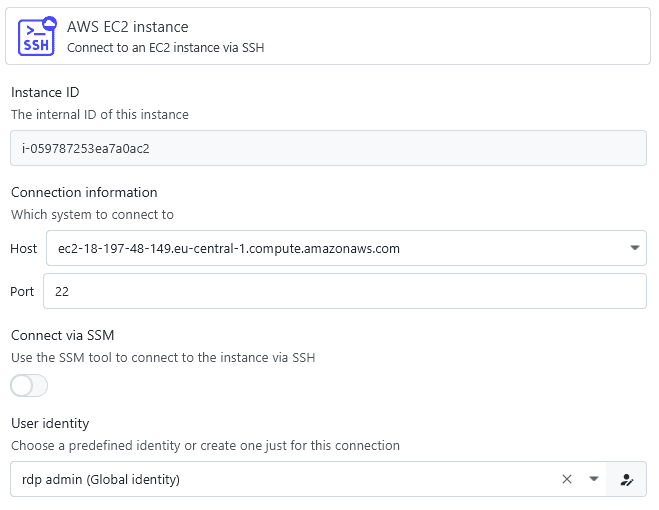
If Connect via SSM is disabled, XPipe will just attempt a normal SSH connection to the current hostname and port of the system. This requires a security group to be configured for the system to allow inbound connections on the SSH port.
When it is enabled, XPipe will use the AWS Systems Manager to connect to the system via SSH. This does not require an exposed SSH port, but instead requires the session manager to be configured on the target instance and permissions to be properly assigned to allow its usage. For a checklist on enabling SSM, see here. Note that any IAM policy must allow the AWS-StartSSHSession document as XPipe uses SSH over SSM, not a plain SSM shell connection.
S3 buckets
XPipe also supports accessing S3 buckets. This is pretty straightforward and does not require any configuration. The file system support for S3 supports any S3-compatible provider and is not limited to AWS.
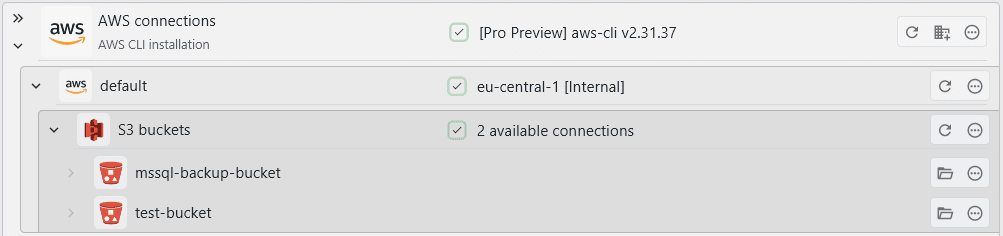
S3 buckets of your account are listed here:
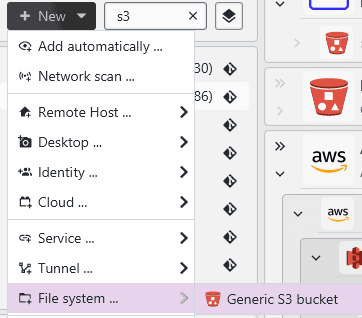
You can add other S3 buckets in the file system add menu:
Generic S3 buckets
A generic S3 bucket can be any bucket that is not hosted on AWS itself. The support for those buckets is the same as for AWS-hosted ones, you just have to provide additional information on how to connect to it:
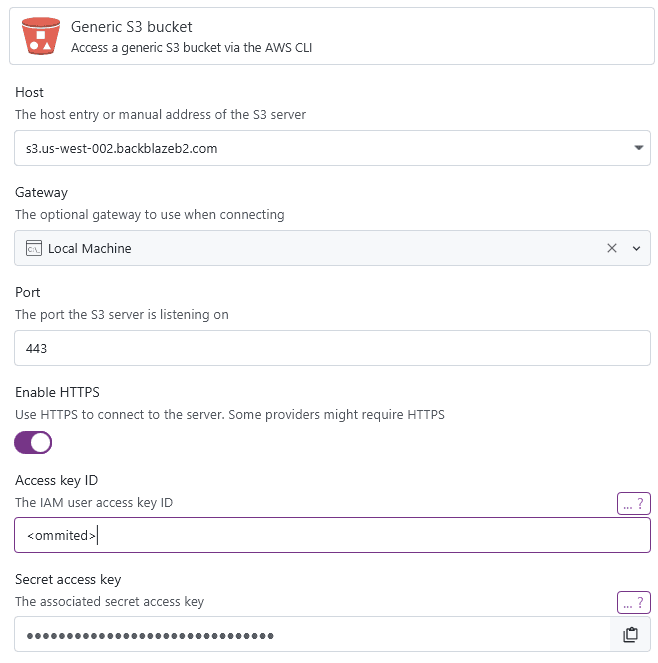
Depending on your provider, specifying a URL without a path might not work. If your provider requires a bucket name in the URL or you do not have permissions to list all buckets, you can add a path to the URL like s3.us-west-002.backblazeb2.com/mybucket.
You can also choose to use a gateway to tunnel the remote S3 port to your local machine. This will disable HTTPS support as the TLS certificate won't work for localhost connections.
Many S3 providers require HTTPS usage and do not support plain HTTP connections anymore.
Content encodings
Files that are stored in a S3 bucket can be encoded with something like gzip to save storage space. XPipe will seamlessly handle content encodings, meaning that if you edit a gzipped file, it will be downloaded locally and uncompressed first. You can then edit the file. Any changes that are saved are then written to the remote server as a gzip compressed file again.
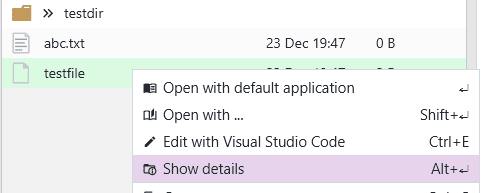
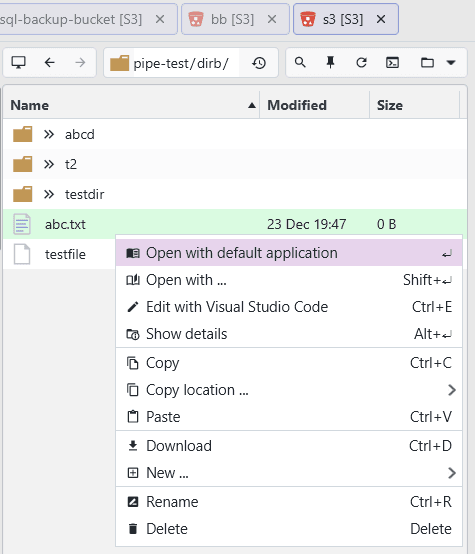
You can inspect the file metadata to find out about any content encodings in the context menu: