
Netbird
Accessing your netbird peers
Introduction
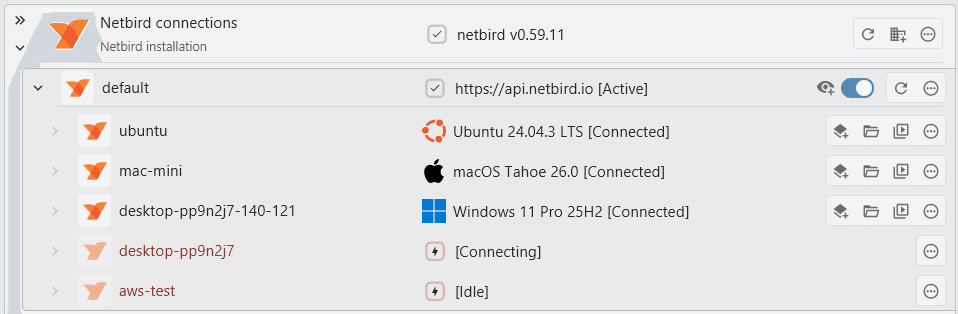
XPipe supports connecting to your systems that are added to your profile in Netbird. For that it uses the netbird commandline tool. Searching for available connections on the local system should make netbird connections show up if the netbird tool is added to the PATH on that system. If you have not installed the netbird tool, you can find installation instructions here. You don't need to use the GUI components of the Netbird installation, XPipe can work exclusively through the CLI.
Netbird SSH
Netbird also provides the Netbird SSH feature where the netbird daemon handles your SSH networking and authentication on your systems, meaning you don't need to expose the SSH port. It is a step-up compared to the normal VPN functionality. At the time of writing this, this feature is not fully finished, meaning that there was no possibility of adding support for it. Maybe in the future that can be added.
For this reason, XPipe will use netbird for networking only. This means that you will still have to provide your user authentication details to log into a server.
Profiles and accounts
You can add multiple profiles to your netbird client at the same time without having to log out of each one. Every profile represents a different network and set of peers. You can find instructions for managing profiles here. XPipe will detect all available profiles on a system automatically. It will automatically switch the active profile when you establish a connection to a peer of a certain profile.

You can also add new profiles from within XPipe with the Add profile button:

In any case, a profile can become inactive if it hasn't been used for a while or if you switch to using a different one. If this is the case, XPipe will open a login terminal dialog that requires you to log into your network again.
Refreshing connections
XPipe can automatically refresh all available peers and profiles by clicking on the refresh button. This is useful if you recently added or removed peers, or changed their configuration. For the refresh to succeed, you need to be logged in into your netbird profile and your login must not be expired. If you are not logged correctly, a login window will pop up automatically.
Daemon
The local netbird daemon application must be running for the integration to work. If it is running, it will typically show up in the system tray if you have installed the GUI tools.
If it is not running, you can quickly start the Netbird application, that will also start the daemon. For CLI-based installations, you can use the command netbird service start or your system-specific service manager like systemd. You can check the current status of the service with netbird service status.